Instagram Stories disappear after 24 hours, but the photos and videos you want to keep do not have to disappear with them. Whether you are preserving personal memories, collecting creative inspiration, or organizing content for a project, knowing how to save Insta Story clips makes the process easier.
You can use Instagram’s built-in features or browser-based downloading tools without installing additional software. Once downloaded, organizing your files properly helps you find them whenever needed.
This guide explains how to save Instagram Stories on different devices, manage your downloads, and protect content quality.
Quick Answer: How to Save Instagram Stories
For your own stories, Instagram provides built-in saving and archiving options. For publicly accessible stories, an online downloader offers another convenient approach.
Follow these steps:
- Open Instagram and find the public story you want to save.
- Copy its link using the available sharing options.
- Open a compatible browser-based story downloader.
- Paste the link into the download field.
- Follow the prompts to save the available photo or video.
The process works on iPhones, Android phones, Windows computers, and Macs.
Remember that public downloaders cannot ordinarily access private stories. Expired stories are generally unavailable unless they remain accessible through Highlights.
Built-In Ways to Save Your Own Instagram Story
Instagram offers several ways to preserve content you create.
Save a Story Before Posting
While editing your story, tap the download icon to save the photo or video before publishing.
Licensed music and interactive stickers may not appear in the downloaded version.
Save an Already Published Story
Open your active story, tap the three-dot menu, and select the available saving option.
Menu labels may vary depending on your device and Instagram version.
Enable Automatic Story Archiving
Instagram’s Story Archive preserves your expired stories when archiving is enabled.
Open your profile settings, locate Archiving and downloading, and enable story archiving.
You can revisit archived content privately or add selected stories to Highlights.
For additional protection, back up important files using iCloud Photos or Google Photos.
Save Public Instagram Stories With Grabfy
When you want to preserve publicly available Instagram content without recording your screen, Grabfy provides a practical browser-based option.
Its Instagram downloader offers a starting point for accessing Instagram downloading features, including tools for saving supported photos and videos.
For stories specifically, Grabfy also provides an Instagram Story Saver by Grabfy that lets users submit publicly accessible story links.
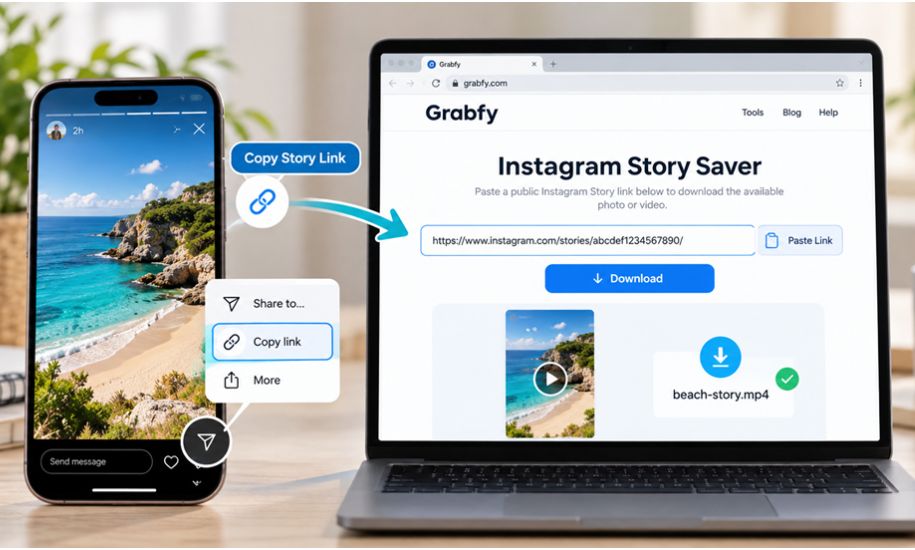
This approach is useful when collecting visual references or organizing authorized content because you can save available media without capturing Instagram’s interface.
How to Download Instagram Stories From Other Accounts
Instagram does not provide a standard download button for saving another person’s stories directly to your device.
However, several methods can preserve publicly accessible content.
Screenshots and Screen Recordings
Screenshots work for individual photos, while screen recording can capture videos.
These methods may include interface elements, playback controls, or notifications.
Instagram generally does not notify creators about screenshots of regular stories, although certain disappearing direct messages have different notification behavior.
Online Instagram Story Downloaders
Browser-based downloaders can save supported public content directly to your device.
Choose services that do not request your Instagram password or unnecessary permissions.
Public visibility does not automatically grant permission to republish someone else’s work. Obtain authorization before using downloaded content commercially.
Step-by-Step: Save Instagram Stories on Any Device
Download Instagram Stories on iPhone
- Open Instagram and locate the public story.
- Copy the available story link.
- Open Safari or another compatible browser.
- Paste the link into the downloader.
- Follow the download instructions.
- Check your Files app or browser downloads.
If necessary, use the Share menu to move downloaded media into Photos.
Download Instagram Stories on Android
- Find the public story on Instagram.
- Copy its link when available.
- Open Chrome or another browser.
- Paste the link into the downloader.
- Save the available media.
- Locate the file in Downloads or Gallery.
Create folders for different creators, projects, or content categories.
Download Instagram Stories on PC and Mac
Open Instagram in your browser, copy the public story URL, and paste it into a compatible downloader.
Save the resulting file to your preferred folder.
Desktop downloads are particularly useful when managing larger collections of authorized content.
Organize Your Instagram Downloads With Grabfy
Saving content is only the first step. Keeping downloaded files organized makes them easier to reuse for personal reference or approved creative projects.
Grabfy offers browser-based Instagram downloading tools that can fit into a simple content collection workflow.
After saving supported media, organize your downloads by project, creator, date, or content format.
For example, create separate folders for travel inspiration, design references, personal memories, and campaign assets.
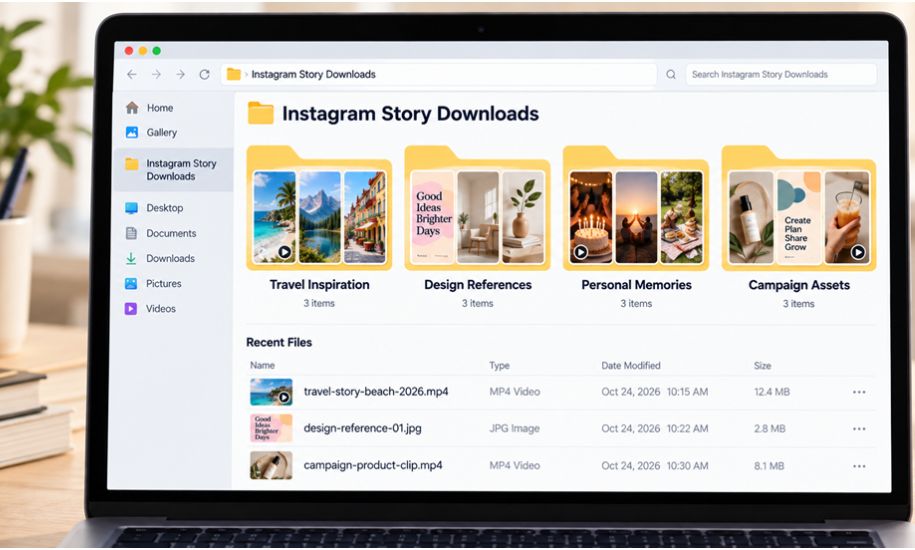
Use descriptive filenames such as travel-story-beach-2026.mp4 instead of keeping generic download names.
A consistent naming system makes searching and sorting considerably easier.
What to Look for in an Instagram Story Saver
A useful downloader should offer straightforward navigation and accessible downloads.
Important considerations include browser compatibility, clear instructions, public-content support, and available media quality.
Avoid services that require Instagram passwords or unexpected software installations.
If you also collect short-form video references, a dedicated Instagram Reels downloader can support a similar browser-based workflow.
For your own stories, Instagram’s built-in saving features remain a convenient option.
Best Practices for Organizing Downloaded Stories
Create a Consistent Folder Structure
Separate personal memories from professional projects.
Within each folder, organize content by month, campaign, or creator.
Rename Files Immediately
Descriptive filenames help identify clips without opening every file.
Include dates or project names when useful.
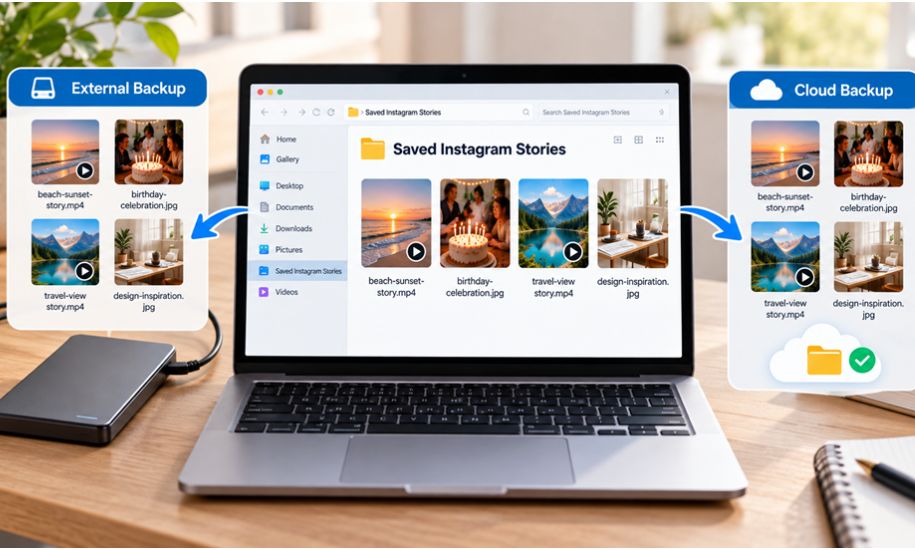
Back Up Important Downloads
Store copies of valuable content in a trusted cloud service or external drive.
Regular backups help protect against accidental deletion.
Remove Unnecessary Duplicates
Review folders periodically and delete unwanted copies.
Keep original-quality versions whenever available.
Track Content Permissions
For professional projects, record the creator’s name, source, and any permission granted for reuse.
This helps distinguish personal references from materials approved for publication.
Safety, Copyright, and Responsible Story Downloading
Downloading Instagram Stories does not automatically give you permission to repost, modify, or distribute someone else’s content.
For personal stories, saving original files is generally straightforward. For content belonging to others, request permission before reusing it, particularly for marketing or commercial purposes.
Protect your account by avoiding suspicious pop-ups, unfamiliar software installations, and services requesting your Instagram password.
Keep your browser updated and check downloaded files before opening them.
Frequently Asked Questions About Saving Instagram Stories
Can I Save an Instagram Story After 24 Hours?
You can retrieve your own expired stories through Instagram’s Story Archive if archiving was enabled.
Other people’s stories generally must remain publicly accessible, such as through Highlights.
Can I Download Instagram Stories Without an App?
Yes. Browser-based downloaders can save supported public stories without additional software.
Can Someone See If I Download Their Story?
Instagram generally does not notify creators about regular story screenshots or screen recordings. However, viewing a story while logged in may appear in its viewer list.
Can I Save Stories From Private Accounts?
Public downloaders generally cannot access private stories. Ask the creator to share the original file instead.
Why Won’t My Instagram Story Download?
Common causes include expired content, incorrect links, browser restrictions, or temporary service issues.
Check the URL, confirm the story remains accessible, and refresh your browser.
How Can I Preserve Download Quality?
Save original media before uploading whenever possible. For public stories, choose a downloader that preserves available quality.
Downloading cannot restore details already lost through Instagram’s compression.
Final Thoughts
Learning how to save Insta Story clips is straightforward with the right tools and an organized workflow.
Use Instagram’s built-in features for personal stories and browser-based downloading tools for supported public content.
Keep descriptive filenames, organize folders consistently, back up important media, and respect creators’ rights when saving or sharing their work.
You may also visit: Technology.